Using Journal Entry Sources and Categories:

(N) Setup > Journal > Sources

Journal entry sources indicate where your journal entries originate.
General Ledger supplies a list of predefined journal sources for journal entries that originate in Oracle subledger applications, such as Assets or Payables.
You can define your own journal sources for non-Oracle feeder systems.
For each journal source, specify whether to import detail reference information for summary journals imported from your Oracle subledger applications. This is required if you want to be able to drilldown to the original subledger transaction from balances in General Ledger.
With journal sources, you can:
• Define intercompany and suspense accounts for specific sources.
• Run the AutoPost program for specific sources.
• Import journals by source.
• Freeze journals imported from subledgers to prevent users from making changes to any journals that have been transferred to General Ledger from that source. This ensures that transactions from your subledger systems reconcile with those posted in General Ledger.
• Report on journals by source using the Foreign Currency Journals or General Journals reports.
If you have journal approval enabled for your ledger, you can use journal sources to enforce management approval of journals before they are posted.
If you are using average balance processing, select an effective date for your journal source. For more information, refer to the Oracle General Ledger User Guide or 11i General Ledger Financial Management Advanced Topic Average Balance Processing.
Journal Categories
(N) Setup > Journal > Categories
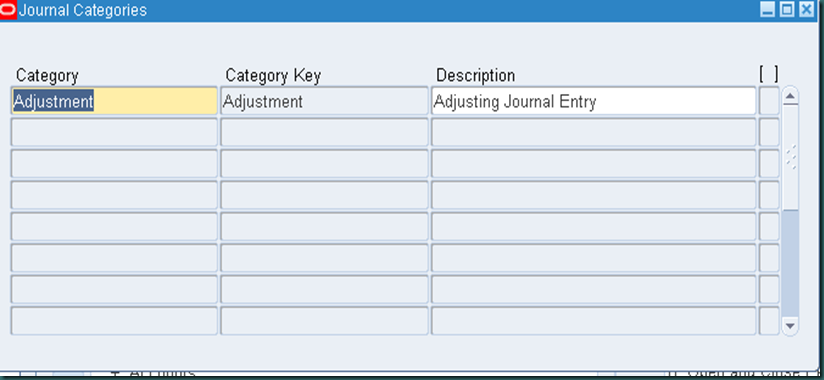
• Journal categories help you differentiate journal entries by purpose or type, such as accrual, payments, or receipts. When you create journal entries, you must choose the default or specify a category.
• Using categories, you can:
- Define intercompany and suspense accounts for specific categories.
- Use document sequences to sequentially number journals by category.
- Define journal categories for accruals and estimates. Use these categories when you define criteria for Auto Reverse and AutoPost.
• Journal categories appear in standard reports, such as the General Journals report. You can run reports by category, by source, or category and source. For example, for month end close, you might run a report listing all journals that were created for the period with a category of accruals. This way you can review the accrual entries created before finalizing your close.
Caution: Oracle General Ledger does not have a standard report showing Journal Import reference information. You must create a custom report to access this information.


