|
Lookup Code
|
Lookup Values & Messages
|
|
F00
|
Insufficient funds (detail) This detail transaction fails funds check
|
|
F01
|
Insufficient funds (->summary) This detail transaction causes a
summary account to fail funds check
|
|
F02
|
Insufficient funds (summary) This summary account fails funds check
|
|
F03
|
Insufficient funds (pending) One or more earlier pending transactions
cause this transaction to fail
|
|
F04
|
Insufficient funds (both) This detail transaction fails and causes a
summary account to fail funds check
|
|
F05
|
Insuff funds (<-generated) One or more associated generated
transactions cause this transaction to fail
|
|
F06
|
Insuff funds (prop<-assoc) One or more associated transactions
cause this proprietary transaction to fail
|
|
F10
|
Insufficient funds (budgetary) This budgetary detail transaction fails
funds check
|
|
F11
|
Insuff funds (->sum budgetary) This budgetary detail transaction
causes a summary account to fail funds check
|
|
F12
|
Insuff funds (sum budgetary) This budgetary summary account fails
funds check
|
|
F13
|
Insuff funds (pend budgetary) One or more earlier pending transactions
cause the budgetary transaction to fail
|
|
F14
|
Insuff funds (both budgetary) This budgetary transaction fails and
also causes a summary account to fail
|
|
F15
|
Insuff funds (budg<-assoc) One or more associated transactions
cause this budgetary transaction to fail
|
|
F20
|
Nonexistent flexfield This Accounting Flexfield does not exist
|
|
F21
|
Disabled or expired flexfield This Accounting Flexfield is disabled or
out-of-date
|
|
F22
|
Posting not allowed This Accounting Flexfield does not allow detail
posting
|
|
F23
|
Budgeting not allowed This Accounting Flexfield does not allow detail
budget posting
|
|
F24
|
Nonexistent period This accounting period does not exist
|
|
F25
|
Period not open or future This accounting period is neither Open nor
Future Enterable
|
|
F26
|
Period not in open budget year This accounting period is not within an
open budget year
|
|
F27
|
Frozen budget This budget is frozen
|
|
F28
|
Expired USSGL transaction code This USSGL transaction code is
out-of-date
|
|
P00
|
Funds not reduced This transaction does not reduce funds available
|
|
P01
|
Funds check not required This account does not require funds check
|
|
P02
|
Not funding budget This budget transaction applies to a budget other
than your funding budget
|
|
P03
|
Foreign currency budget This foreign currency budget transaction does
not require funds check
|
|
P04
|
Add Summary program created This summary transaction is created by the
Add Summary Accounts program
|
|
P05
|
Force passed funds check This transaction passes funds check in force
pass mode
|
|
P10
|
Passed funds check This transaction passes funds check
|
|
P15
|
Passed funds check (budgetary) This budgetary transaction passes funds
check
|
|
P20
|
Advisory warning This transaction fails funds check; advisory checking
is in force
|
|
P21
|
Passed due to override This transaction fails funds check; you
overrode the failure
|
|
P22
|
Advisory warning (->summary) This detail transaction causes a
summary account to fail funds check (advisory)
|
|
P23
|
Passed due to override (sum) This summary account fails funds check;
you overrode the detail(s)
|
|
P25
|
Advisory warning (budgetary) This budgetary transaction fails funds
check; advisory checking is in force
|
|
P26
|
Passed due to override (gen) This transaction or its associates fail
funds check; you overrode the original
|
|
P27
|
Advisory warning (->sum bud) This budgetary transaction causes a
summary account to fail check (advisory)
|
|
F29
|
The transaction account and budget account are different
|
|
F30
|
The transaction failed funds check at the resource level
|
|
F31
|
The transaction failed funds check at resource group level
|
|
F32
|
The transaction failed funds check at the task level
|
|
F33
|
The transaction failed funds check at the top task level
|
|
F34
|
The transaction failed funds check at the project level
|
|
F35
|
The transaction failed funds check at project account level
|
|
F36
|
Funds check failed because of unexpected error
|
|
F37
|
Failed because year end rollover process is in progress
|
|
F38
|
Funds check failed because of invalid budget versions
|
|
F39
|
No budget account on raw line
|
|
F40
|
The resource list is invalid or null
|
|
F41
|
The amount type or boundary code is invalid
|
|
F42
|
The amount type or boundary code is invalid for no time phase
|
|
F43
|
Invalid boundary code for amount type 'Project to date'
|
|
F44
|
Invalid boundary code for amount type 'Year to date'
|
|
F45
|
Invalid boundary code for amount type 'Period to date'
|
|
F46
|
Funds check failed because of invalid resource list member
|
|
F47
|
Start date or end date is null for the specified date range
|
|
F48
|
Not able to derive PA date
|
|
F49
|
Invalid budget entry method or missing baseline version
|
|
F50
|
Could not map to a budget line while deriving budget account
|
|
F51
|
Not able to derive GL date
|
|
F52
|
The encumbrance type is null or invalid
|
|
F53
|
Funds check failed because budget baselining is in progress
|
|
F54
|
No matching requisition was found for this purchase order
|
|
F55
|
No matching purchase order was found for this invoice
|
|
F56
|
Could not acquire lock: funds checks are running concurrently
|
|
F57
|
Transaction failed because of CBC funds check
|
|
F58
|
Transaction failed because of GL funds check
|
|
F59
|
No budget exists at the resource level
|
|
F60
|
No budget exists at the resource group level
|
|
F61
|
No budget exists at the task level
|
|
F62
|
No budget exists at the top task level
|
|
F63
|
No budget exists at the project level
|
|
F64
|
No budget exists at the project account level
|
|
P28
|
Funds check passed at the project account level
|
|
P29
|
Funds check passed at project account level in advisory mode
|
|
P30
|
Funds check passed at the project level
|
|
P31
|
Funds check passed at the project level in advisory mode
|
|
P32
|
Increase in funds does not require funds check
|
|
P33
|
Invoice interfaced from projects does not require funds check
|
|
P34
|
Expense report from projects requires no funds check
|
|
P35
|
Funds check passed at the resource level in advisory mode
|
|
P36
|
Funds check passed at resource group level in advisory mode
|
|
P37
|
Funds check passed at the task level in advisory mode
|
|
P38
|
Funds check passed at the top task level in advisory mode
|
|
P39
|
GMS: Transaction passed Funds Check in advisory mode
|
|
F65
|
PO/CBC: Single year validation failure
|
|
F66
|
PO/CBC: Accounting Date validation failure
|
|
F67
|
GMS:Funds check processing error,contact system administrator
|
|
F68
|
GMS: Funds Check failed due to invalid award number
|
|
F69
|
GMS: Funds Check failed at Top Task Level
|
|
F70
|
GMS: Funds Check failed in full mode
|
|
F71
|
GMS: Funds Check failed at the Award level
|
|
F72
|
GMS: Funds Check failed at the Task level
|
|
F73
|
GMS: Funds Check failed at the Resource level
|
|
F74
|
GMS: Funds Check failed at the Resource Group level
|
Showing posts with label Encumbrance. Show all posts
Showing posts with label Encumbrance. Show all posts
Sunday, May 10, 2015
What are the possible values in the Column FAILED_FUNDS_LOOKUP_CODE in PO_REQ_DISTRIBUTIONS_ALL and PO_DISTRIBUTIONS_ALL and what do they stand for?

Sunday, June 22, 2014
Purchasing Documents Fail Funds Check Or PR/PO Going To Pre-approved Status Due To Budgetary Control Exceptions
Issue:
When enter Purchase requisition its gone to Pre-Approved status and unable to Fund check from Tools > Fund check.
Below Error message:

Solution:
1. In an encumbrance enabled environment, Purchasing document will go to Pre-approved status/fails funds check due to budgetary control exceptions with different causes mentioned below:
When enter Purchase requisition its gone to Pre-Approved status and unable to Fund check from Tools > Fund check.
Below Error message:
Solution:
1. In an encumbrance enabled environment, Purchasing document will go to Pre-approved status/fails funds check due to budgetary control exceptions with different causes mentioned below:
Error related to Insufficient funds for the budget account used in the Requisition or Purchase Order where the amount specified in purchasing documents in functional currency exceeds the funds available shown in
Funds Inquiry screen.
Example: 'This detail transaction fails funds check' or 'This detail transaction causes a summary account to fail funds check'.
Example: 'This detail transaction fails funds check' or 'This detail transaction causes a summary account to fail funds check'.
Budget account is null in PR/PO distributions. This can happen if encumbrance is switched when open purchasing documents exist.
Error due to incorrect set up with respect to encumbrance accounting in R12 SLA architecture. This error is specific to R12 and will not occur in 11i.
Example: 'Procedure PSA_BC_XLA_PUB.Budgetary_Control returns an error without any details to the calling procedure PO_ENCUMBRANCE_POSTPROCESSING.execute_gl_call.Please contact your support representative.'
Due to the errors mentioned above, Budgetary control exception happens with approval workflow showing the RESERVE DOC error when the document is submitted for approval.
2. To know upfront whether the purchasing documents will get reserved and approved or fail funds check/go to Pre-approved status with budgetary control exceptions, system provides two options.
Perform 'Check funds' action from Tools > Check funds on the purchasing document which can be done by the preparer of requisition or buyer of purchase order so that it will show the message as 'Your budgetary control action completed successfully' or 'Your budgetary control action failed with exceptions'. This message box will have a button called 'View Results' and this will show the detail on why the exception happened giving the error message "This detail transaction fails funds check" or "Procedure PSA_BC_XLA_PUB.Budgetary_Control returns an error without any details....."
When the preparer or buyer takes the reserve action from forms, there is an option to check the RESERVE box explicitly before submitting for approval. By doing so, system will show the message as 'Your budgetary control action completed successfully' or 'Your budgetary control action failed with exceptions' with the detailed messages as mentioned above and the document will not get forwarded to the next approval level as it remains in INCOMPLETE status thereby preventing the document to go into pre-approved status.
3. If the purchasing document goes to Pre-approved status due to budgetary control exception in any case, it has to be reset to INCOMPLETE status and then it has to be reserved and approved after fixing the problem of budgetary control exception. To reset the purchasing document to Incomplete status, please refer to Note.390023.1 which has the datafix to reset the document to Incomplete status.
Note: This datafix will work only if there are no approved encumbrance entries in po_bc_distributions. It means that if any of the distributions in the purchasing document got successfully reserved once and if the RESERVE action is taken for a new distribution in the same PR/PO or for the existing distribution which has been unreserved and if the PR/PO goes to pre-approved status for this RESERVE action, it cannot be reset to INCOMPLETE status. In such cases, please raise a Service Request with Oracle Support in Purchasing module.
4. To control over-expenditure, system provides an option to set the funds check level as Absolute or Advisory for the budget account defined under the budget organization so that the purchasing documents cannot be encumbered if the approval amount exceed the funds available.
Navigation to define the funds check level: General Ledger > Budgets > Define > Organization > Query the account and click on Ranges and then click on Budgetary Control
If the Funds check level is Advisory, system will throw a warning that "Advisory checking is in force" indicating that you are exceeding the funds available, if the amount to be reserved is more than the funds available. But it will allow reserving the document and the Requisition or Purchase order will not go to Pre-approved state.
If the Funds check level is Absolute, system will throw an error that "This detail transaction fails funds check", if the amount to be reserved is more than the funds available and the Requisition or Purchase order will go to Pre-approved state without getting reserved.
5. There is also an option to have budgetary control at summary account level by defining the summary template and doing the budgetary control setups for it.
Navigation to define the funds check level for the summary template: General ledger > Set up > Accounts > Summary > Budgetary control button.
In such cases, the detail accounts used in the Purchasing document would be defined as child for the parent summary accounts which would be attached to the Roll up group. And summary template will be defined using these Roll up groups.
6. There is a profile option "Budgetary Control Group" which should have a value set at user/responsibility/site level. For this value, Funds check level can be set for a specific source and category (Purchasing as source and Requisitions as category) and tolerance amount can be defined under this budgetary control group. By having this feature, Budgetary control can be done for a specific source and override authority can be given to a particular user by defining some override amount. The user to whom the budgetary control group which has the override amount, is assigned should be having override authority. But the purchasing documents will get reserved using this override authority only if the profile option 'PO:Override funds reservation' is set to Yes for the user who has the override authority, otherwise it will go to pre-approved status. If the approval action is taken from notification summary, then the user with override authority can reserve the document using the option 'Try override' available in the notification summary itself even if this profile option is not set.
Select the Sub-Ledger accounting Method as "Encumbrance Accrual" in Ledger Option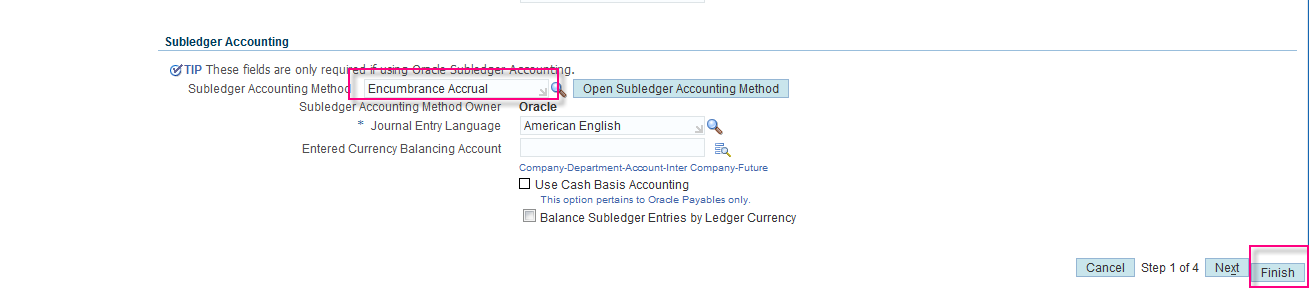
Then check again fund check from requisition Tool>Fund Check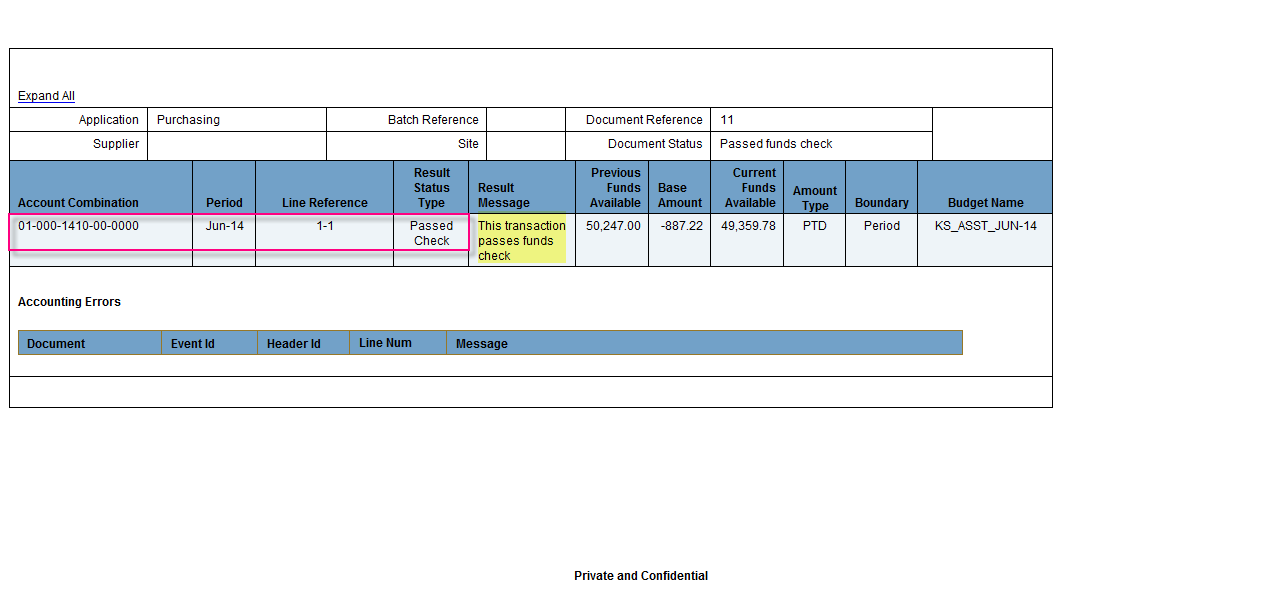
5. There is also an option to have budgetary control at summary account level by defining the summary template and doing the budgetary control setups for it.
Navigation to define the funds check level for the summary template: General ledger > Set up > Accounts > Summary > Budgetary control button.
In such cases, the detail accounts used in the Purchasing document would be defined as child for the parent summary accounts which would be attached to the Roll up group. And summary template will be defined using these Roll up groups.
6. There is a profile option "Budgetary Control Group" which should have a value set at user/responsibility/site level. For this value, Funds check level can be set for a specific source and category (Purchasing as source and Requisitions as category) and tolerance amount can be defined under this budgetary control group. By having this feature, Budgetary control can be done for a specific source and override authority can be given to a particular user by defining some override amount. The user to whom the budgetary control group which has the override amount, is assigned should be having override authority. But the purchasing documents will get reserved using this override authority only if the profile option 'PO:Override funds reservation' is set to Yes for the user who has the override authority, otherwise it will go to pre-approved status. If the approval action is taken from notification summary, then the user with override authority can reserve the document using the option 'Try override' available in the notification summary itself even if this profile option is not set.
Select the Sub-Ledger accounting Method as "Encumbrance Accrual" in Ledger Option
Then check again fund check from requisition Tool>Fund Check
Subscribe to:
Posts (Atom)