Friday, July 24, 2015

Unable to get The Matching Criteria In Reconciliation Open Interface For R12

Issue:

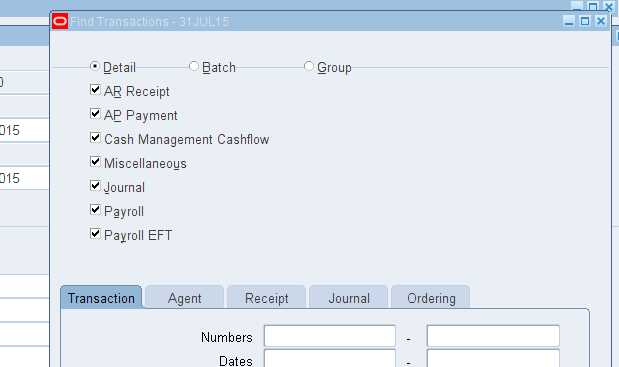
Unable to see the Open Interface tab in the Cash Management in available Form to match the Open interface transactions for reconciliation.


Fix:

Enable the "Use Reconciliation Open Interfaces" check box under "Open Interface Controls" in Bank Account Control screen.


1. Navigate to Bank account Enquiry screen : Setup -> Bank -> Bank Account

2. Find your bank and select for Update option.

3. Click on "Account Control"

4. Enable the "Use Reconciliation Open Interfaces" check box

5. Click on Finish Button


Now we can able to get the Open Interface Option enabled in available window.


Wednesday, July 22, 2015

Not Able To Select Settlement Script At CE Bank Accounts Access Options/treasury settlement generate screen, NO list of values

Issue:

Not Able To Select Settlement Script At CE Bank Accounts Access Options, NO list of values


Fix:

1. Before you can select settlement script in the CE Bank Accounts: Bank Account: Account Access Options page from the "Procedure Name" LOV, you need to define it as a Lookup code:
Navigation path:
Treasury ->Setup->Miscellaneous->Lookups, Lookup Type is "XTR_SCRIPT" and insure that you enable all the scripts:
BNZ_EFT Settlement Script - Bank of New Zealand EFT
SWT_EFT Settlement Script - SWIFT 100
X12_EFT Settlement Script - X12 820

2. Insure that: Bank Account access is setup for Treasury for the Legal Entity (LE) and not for Operating Unit (OU) as is being done for Payables and Receivables.

If Treasury is enabled for OU then you will have to uncheck Treasury from the operating unit and
added access to LE for Treasury.


3. Insure that, it has selected in your in the company profile under Settlement script

Treasury -> Setup -> company profile -> Settlement Scripts

4. Once above is done you should be in a position to select these at:
Bank Account >>Update Bank Account: Account Access Options


Monday, July 13, 2015

APP-OFA-47333: You Cannot Perform this transaction because the asset is fully retired. Choose a book in which you have not yet retired the asset, or reinstate the asset

Issue:

APP-OFA-47333: You Cannot Perform this transaction because the asset is fully retired. Choose a book in which you have not yet retired the asset, or reinstate the asset, and then perform the transaction. If you wish to cancel or undo the retirement, Please query it first.


Solution:-

Reinstate the retired asset.

1. Navigate to Inquiry > Transaction History.

2. Enter the Book & Asset Number of the asset.

3. Press the Find button.

4. Mouseclick the Transaction type field for the retired asset. (It is important to be in the correct field or the Reference Number retreived will not be correct).

5. Make a note of the Reference Number.

6. Go to the Asset Workbench and query the asset.

7. Click the Retirements button.

8. Once the Retirements screen is displayed:

a. Press F11 to query or select Query>Enter on the menu bar.

b. Enter the Reference Number noted above.

c. Press CTRL F11 to perform the query or select Query>Run from the menu bar.

9. Once the information appears on the screen, verify that the information is correct and press the Reinstate button.

10. Run the Calculate Gains and Losses program.